v0.1.00
Godev and the couch
Your games get one helper, Godev, and their own Input Map, so a downloaded game plays on one screen with a controller each. The browser version now looks like the desktop one.
New
- Your game's own controls: the Input Map. The Project app's Settings is now laid out like Godot's Project Settings, with General, Input Map and Plugins pages. In the Input Map you add actions (jump, dash, pause…) and give each one keys, mouse buttons and gamepad buttons or stick directions: press the key or button you want, or pick a gamepad button from a list when you don't have one plugged in. Your scripts read them with
Godev.input(seat).is_action_pressed("jump") (or Godot's own Input), the code editor suggests their names, and the downloaded Godot project gets the same Input Map. - One helper for your game: Godev. Everything that makes your game multiplayer now lives in one place,
Godev: Godev.change_scene("res://scenes/Game.tscn"), Godev.quit(), Godev.seats(), Godev.input(seat) (the same functions as Godot's Input, for one player), Godev.send("score", {...}) with named messages instead of numbers (positions and colours arrive as themselves), and Godev.texture("ship.png") / Godev.sound("laser"). The starter games and the campaign use it. - Downloaded games play on the couch. The Godot project you download from the Files app now carries Godev as a real Godot plugin. Friends playing it on one computer each press A on their own controller (or Enter on the keyboard) to join, so four gamepads make four players; the keyboard and mouse count as one player. Online in Godev, your keyboard, mouse and any gamepad all move your player.
Improved
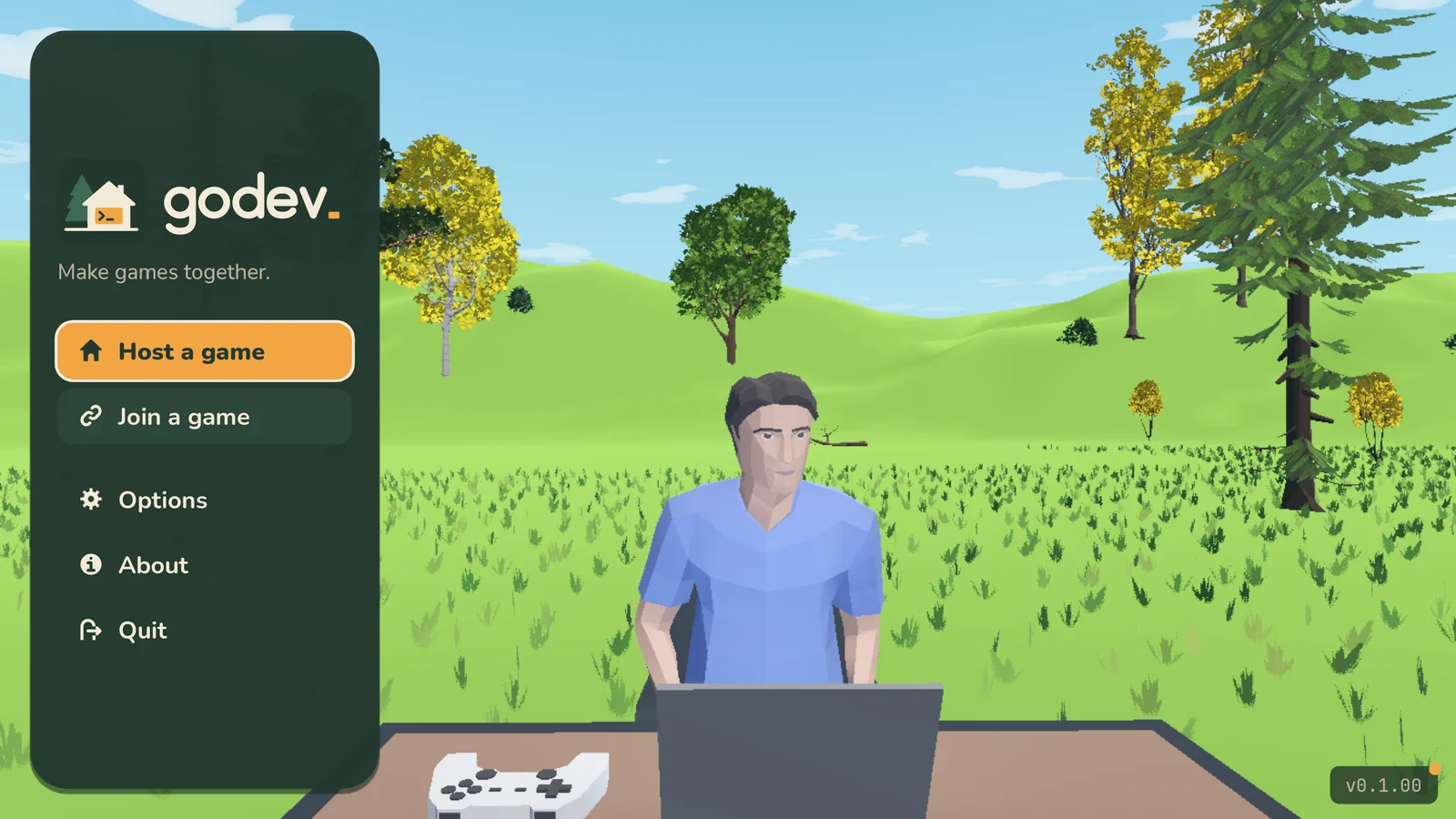
- A tidier main menu, and a new About. The version number now sits at the foot of the menu, under "Proudly made with Godot". About now has three pages: the Changelog (one release at a time, newest first), a short slideshow of what you can do in godev (make a game, play it together online, take it to Godot, play it on the couch) and a Thanks page that names everything godev is built with. The Controls page is gone: Options → Controls has them all.
- The computer screen turns on as you sit down. Zooming into a computer, its screen lights up with your desktop wallpaper on the way in, instead of staying black until the desktop appears, and goes dark again as you step away.
- Real side-steps. In first-person and the shoulder camera, walking left or right now side-steps (and walking at an angle steps at an angle) instead of a slow shuffle, and holding Shift runs sideways and backwards as fast as forwards, with the body turning into the run.
- Fewer camera keys. The overhead isometric and top-down cameras are gone; 1, 2 and 3 are first person, front and over the shoulder. The free trailer camera in creative moved from 6 to 4.
Fixed
- The free camera stays put while you walk. In the selfie camera (key 2), turning to walk a new way no longer makes the camera jump with every key press.
- Muting your mic in the browser no longer crashes the game. Clicking the mic button on the computer's status bar during a multiplayer game closed the browser version.
- The mouse stays where it should in the browser. Clicking a computer, a TV or an arcade cabinet frees the pointer at once (before, it stayed locked and the computer's cursor wouldn't move until you clicked again), and walking away locks it again without an extra click. After pressing Esc, the click that takes the mouse back no longer also clicks whatever is under it.
- The browser version is no longer too bright. Its sky was a white glare, its lamps lit every wall at full strength and the sun shone through the roof; it now looks like the desktop version.
- The sun stays outside. Sunlight no longer comes through the roof onto the floors, walls and furniture. Rooms are lit by their lamps and soft daylight from the windows that follows the time of day, and you step out of the sun when you walk in the door. Nothing changes when the camera moves in or out, so the outside stays bright when seen from inside.
- Ceiling lights light the room. Pendant and ceiling lamps were shining from inside the ceiling, which threw blotchy patches on it. They now shine from their bulbs, at a softer strength.
- Rooms aren't washed out any more. Lamps glow softly by day and come up to full strength as evening falls, so a furnished room keeps its colours in daylight and stays cosy at night, and the floor looks the same through the open door as it does once you're inside.
v0.0.81
Starfall Arcade opens
Walk into Ray's arcade, where every cabinet runs its game live. Release your chapter games to it, put cabinets in your house, and watch or join friends on the TV the same way.
New
- Blinds and curtains on the windows. Houses now have roller blinds, venetian blinds or drapes hung on their windows. Click a blind from inside to raise or lower it; everyone in the room sees it move, and the house remembers it. While a blind is down it covers the window, so raise it first to open the window. In the house builder, the Windows step has a curtain picker: choose a style and colour, then click a window to hang it, or put it on every window at once.
- Starfall Arcade is open. In a campaign, the computer's new Arcade app takes you to Ray's arcade, on your own: your friends can stay home or come along whenever they like. Every cabinet runs its game live on its screen, sitting at its main menu until someone plays. Click a cabinet to step up to it: you watch its screen close up, with a panel beside it showing who's playing and who's watching. Press Play on the panel (or Join to jump into a friend's game), Esc to stop playing and go back to watching, and Leave (or a right click) to walk away. When the player who started a game walks away, it keeps going with their seat free, like a real arcade, until someone else steps up. Walk out of the front door to go home.
- A real arcade to walk around. Starfall Arcade is bigger, with room for a crowd at every machine: the old cabinets stand well apart along both side walls, each under its own spotlight and its game's poster, and the new games you release go on the back wall under the STARFALL sign. Neon signs, a glowing space carpet, a starry ceiling, a high-score board, billiards and foosball, a snack corner and Ray's prize counter fill the rest. Cabinets are a little bigger too, about as tall as a real one.
- Chapters end in the arcade. Finish a chapter's tasks and the Tasks app sends you to the new Cabinet app: design your game's cabinet, then Release to the arcade. Your game appears on its own cabinet in Starfall Arcade, pays out, and the room moves on to the next chapter. You can open an older chapter any time to make its game better and release it again.
- Design your game's cabinet. The Cabinet app dresses your game's arcade cabinet: its name, body and trim colours, and art for the marquee, the frame round the screen, the control panel, the kick panel and both sides. Pick any sprite from your project, or press Draw in Sprites to start from a template made for that spot (the cabinet's outline, the screen hole and the joystick are marked). An animated sprite plays on the cabinet, so a flashing marquee is easy.
- Watch and join on the TV. Click a TV showing someone's game to step up to it, just like an arcade cabinet: you see who's playing and who's watching, Join the game puts you in (Esc brings you back to watching), and Leave or a right click walks away. The first time, it asks before running that player's game on your computer; after that their games show on the TVs by themselves. No more pop-up asking whether to watch. A TV with no game on still opens its connection card.
- Arcade cabinets for your house. The Store sells a cabinet for every starter game, and one for each game you've released in your studio; every cabinet comes with its game. The Cabinet app can swap what's on a cabinet: another starter game, your own project (released to it, so the cabinet keeps that version while you keep working), or any game released in your studio. It plays live, for everyone in the house. A game someone else made asks before it runs on your computer.
- Your game stops on the line with the mistake. When your game's code hits an error while you play it from the Project app, the game pauses and the Script view opens on that line, marked in red, with the error in plain words (like Godot's debugger). Fix it and save, then press Back to game to carry on, or Stop. Each mistake stops the game once per run, and everything else keeps working.
- Every change in the Project app can be taken back. Disconnect a signal with the cross beside its function (the function stays in your script). A function you deleted from the script shows in red under its signal, and connections to nodes that are gone are listed so you can remove them. Values you set in the Inspector, text sizes and colours included, have a revert arrow that puts them back to the default, and a value for a variable your script no longer has can be removed. Right-click a linked scene and choose Make local to edit its nodes right in this scene. Dragging a node to a new parent keeps its signals working, and deleting a scene tells you which scenes still use it.
Improved
- Make things without reaching for the mouse. New scene, New script, Attach script and Rename open with the name box ready to type in and a name already filled in and selected: a script is named after its node (a scene's top node after the scene), a new scene after the selected node. Enter does the same as OK. Ctrl+A opens Add Node with the search ready; the best match is highlighted as you type (typing "body" finds CharacterBody2D), Up and Down move the highlight, and Enter adds it.
- One colour picker everywhere. The Project app's inspector and project settings now use the same small colour picker as the Sprites app. It has a new Opacity slider for see-through colours (the hex code shows it too), a preview of the colour before and after (click the before half to go back to it), and a row of the colours you picked lately.
- Selecting in the scene view works like Godot. A click picks what is drawn on top at that spot: CanvasLayers and Z Index count, not only the order in the scene tree. Clicking empty space between a group's children no longer selects the group (or the whole scene), so you can drag a selection box there. Full-screen layout nodes like a HUD frame no longer cover everything under them. Turned nodes are picked and outlined as they are drawn, a box selection takes what lies wholly inside it, and resizing works on scaled nodes. Click the same spot again to select the node underneath.
- Better code suggestions. Function parameters such as delta, event and body are suggested, and the list no longer pops up once you've typed a whole name (so Enter starts a new line instead of picking something like get_process_delta_time), inside comments and strings, or after a number. Suggestions after a dot know more types: velocity., position., event., $Ball.position., Vector2(...) variables and Tween. all list the right members.
Fixed
- Dropping files into a scene works like Godot. A picture, sprite, sound or scene dropped on the 2D view goes into the scene's root node at the spot you drop it. Hold Ctrl to put it inside the selected node, or Shift to put it beside it; the bottom bar says which while you drag. Before, it always went inside whatever was selected, so a dropped scene could end up inside another scene and vanish. Dropping onto the scene tree puts it inside the node you drop on, or between two nodes.
- Moving nodes in the scene tree keeps them in place. A node dragged under another one stays where it was on screen, like in Godot, and gets a new name if its new parent already has one with that name. Nodes can't be dropped inside a linked scene any more (edit that scene instead).
- HUD nodes follow the view. Nodes under a CanvasLayer now pan and zoom with the rest of the scene in the editor, so they line up with their selection boxes.
- The script editor keeps your place. Switching to another app, to the Scene view or to another script tab and back leaves the cursor where it was, ready to type, and unsaved changes in another tab are no longer lost.
- Saving a script while the game runs only live-reloads the scene's own script. Saving another script (say Player.gd while Main runs) used to put its code on the running scene. It now applies the next time its scene loads, and Hot reload says so.
- Connect works when the function is already there. Connecting a signal to a function you wrote first (or one left behind by an undo) now makes the connection instead of only jumping to the function. Duplicating a node (Ctrl+D) keeps its signal connections.
- Script variables set on a scene's root keep their values in the game. Values set in the inspector for the root's own script were reset to the script's defaults when the game ran.
- Hidden nodes can't be clicked. Children of a hidden node or CanvasLayer no longer get picked in the 2D view.
- Dragging inside scaled or rotated parents. A node under a scaled or rotated parent now follows the mouse exactly.
- Scenes that instance each other (A inside B, B inside A) are refused instead of crashing the game.
- Smaller fixes. Ctrl+K toggles comments, like Godot (Ctrl+/ still works). Collision layer buttons keep layers 9 to 32. Clicking into a number field and out again no longer rounds its value.
- Smooth running at an angle. Running diagonally no longer jumps between walking and running speed as you turn the mouse: in first-person and the shoulder camera the run now eases off the further you move to the side. The legs stay in step when they change between walking, running and side-stepping.
- Walking looks and sounds right. Characters no longer glide along with their feet planted: every walk, run, strafe and crouch now plays at the pace that matches how fast the body moves, for you, your friends and the people in cutscenes. Footsteps land when a foot touches the floor, at any speed, instead of on a timer, so running no longer sounds faster than your feet, and there are no footsteps in the air. Landing a jump makes a soft thud, and landing on the move runs straight on instead of freezing your feet for a moment. Stopping no longer slides you forward, and walking into a wall stands still instead of walking on the spot. Walking is a little slower to match the legs, and Shift now runs forward or back (sideways stays a walk).
- Esc pauses your game. Pressing Esc while playing in the Project app now pauses the game instead of closing it; press Esc again to carry on, or Stop to end it. A game whose own scripts read Escape (ui_cancel or KEY_ESCAPE) gets the key instead.
- New Node2D groups start at 0, 0. A Node2D added from Add Node is placed at the scene's origin, like Godot, not in the middle of the view. A group like Rocks or Bullets that was off-centre shifted everything inside it, so rocks wrapped round in the wrong place and bullets came out away from the ship.
v0.0.73
Save the Arcade
The campaign gets a story: Ray's arcade is dying and you make it new games, starting with Rock Blaster. Side jobs are real work now, and the sound tools learn to keep things easy on the ears.
New
- Save the Arcade. The campaign has a story now. A new campaign opens on a rainy night at Starfall Arcade, where its owner, Ray, asks you to make new games for his dying arcade. His emails start each game and cheer you on as you finish its parts, so open Mail on your computer: the first task of every game is reading his plan. Campaign saves from earlier versions can't be continued; start a new campaign.
- Rock Blaster. The campaign's first game is new: fly a little ship through space, blast drifting rocks and watch big ones break into small ones. Pong lives on as one of Starfall's old cabinets.
- Arcade cabinets that play. The arcade cabinet now has its joystick and buttons, and its screen plays a game: each cabinet loops one of the starting games, or shows "OUT OF ORDER" when it's broken. Find it in the Store under Gadgets → Games.
- Ray has a voice. Cutscene lines babble as they type out, a little voice for each speaker, and pause at commas and full stops. Ray's arcade also has a stereo on the counter playing quietly under the rain.
- Side jobs you actually do. Job offers in the campaign's Mail are now real little jobs: draw a coin icon, make a door slam, write a victory jingle, fix a health script, build a pause menu. Press Start work and the file is set up for you in your project's side_jobs folder, a checklist ticks as you save, and the client pays the moment everything checks out. Teammates see your job in their Tasks app and can help, and your work stays in the project to use in your own games.
- A clearer Tasks app. The task you're on now sits in a big card at the top with its hint and a button that opens the right app (or the exact scene, script or sprite). Up next shows what's coming, the full list folds into parts, and tabs along the top switch between the chapter, your side job and your teammates' jobs.
- A better inbox. Filter Mail by Story or Jobs, see at a glance which offers are open, in progress or done, delete mail you don't need and mark everything read. The Mail icon and the status bar show how many unread messages you have.
- A whole game soundtrack to start from. The Sequencer's starter songs are now the music of one little game, Starfall: a title theme, main menu, Level 1, cave, shop, boss fight and credits, plus three jingles (level clear, item get, game over). They all share one melody, so you can hear how a game's music is built from a single tune. They're also on a new Starfall shelf in the Music app.
- Softer, warmer instruments. New Sequencer sounds: Soft lead, Chip lead, Flute, Synth brass, Music box, Marimba, Electric piano, Warm pad, Strings, Choir, Round bass, Triangle bass and more, plus a gentle Soft drum kit with brushes and shakers. Every sound sits at the same volume, and none of them buzz.
- More sound effect presets. The Sounds app adds Pickup, Bounce, Step, Whoosh and Hit for games, and Select, Confirm and Back for menus. Laser and Power are softer, and the harsh Robot preset is gone.
- Template games sound even. Every sound in the game templates now plays at a comfortable volume, with the sounds you hear constantly (shots, footsteps) a little quieter.
Improved
- Pick instruments by ear. Adding an instrument to a song shows every kind (drums, bass, lead, chords, pluck, bells and your own Sounds-app sounds) with all the sounds it can use, each with a picture of the sound. Click one to hear a little phrase in your song's key, name it, and add it.
- A start page for the Sequencer. Opening the Sequencer shows the starter songs and your saved songs together on one screen, no scrolling. Pick a starter to see its notes, then set the name, tempo, key and scale, length and swing before you create it (a longer song repeats the starter's bars). Your saved songs show a little picture of their notes and turn the page when there are more than fit.
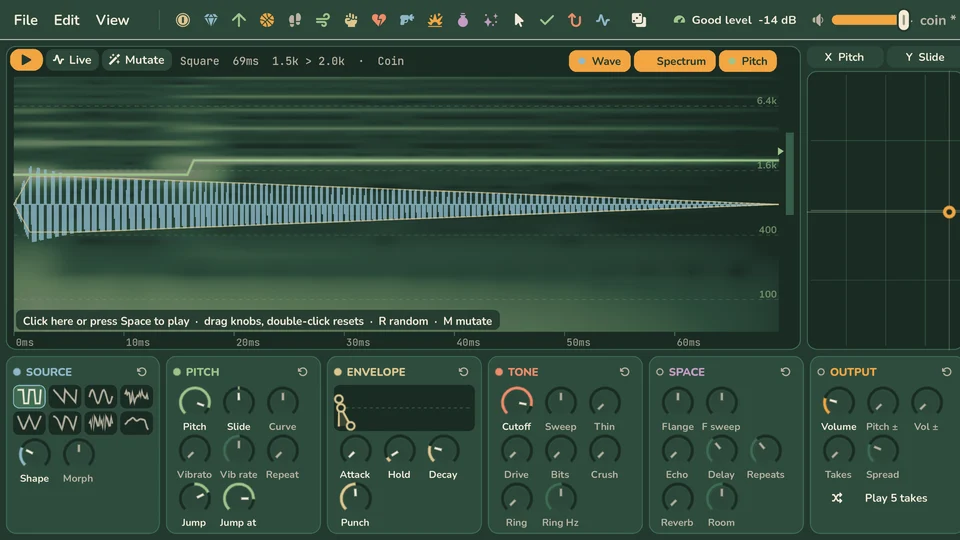
- No more ear-splitting sounds. A badge at the top says how loud the sound is (quiet, good, loud or too loud) and fixes it with one click. Presets, Random and Mutate now come out at a comfortable volume, and the Volume knob shows decibels.
- Loudness that matches your ears. The Sounds app's level badge now counts bright, piercing sounds as louder than deep ones, the way ears hear them, and "Good level" covers a narrower range. "Set a comfortable volume" and new presets now turn high-pitched sounds down further.
- A spectrum you can read. The Sounds app's spectrum now lines up with the pitch line and its labels, shows finer detail, and stays bright for quiet sounds.
- A spawn point for every house. Building a house now has a Spawn step: the tile out front that is kept clear for players arriving, filled in next to the drop zone for you. Move it to any free tile outside the house.
Fixed
- Campaign saves no longer get lost. Pressing Play Game used to erase the game's settings file, which held your campaign save slots (they showed as Empty next time), finished tutorials and preferences. Continuing a campaign could also undo finished tasks, and a slow start could reset your house and money. Saves now wait until your progress has loaded, the settings file keeps a backup, and quitting waits a moment for the last saves to finish.
- Enter in the script editor makes a new line. Suggestions no longer get in the way: Enter only takes one when it finishes the word you're typing (or you picked it with the arrow keys), so Enter after a whole word like rotation, or after a new name, starts a new line instead of writing something else. Tab still takes the suggestion. The list only shows names that start with what you typed (or have a word that does, so pos finds global_position), not loose matches like hide_tooltips for hits, and it stays away while you name a new variable, loop variable or parameter. Key and mouse constants like KEY_UP and MOUSE_BUTTON_LEFT are suggested now.
- Campaign tasks check where things are and how big they are. A step that asks for a Position or Size (a full-screen Background, a ship's Body and Nose, the ship in the middle of space, the paddle and ball) no longer moves on as soon as the node has the right name. Until it's right, the Tasks app says exactly what to change, for example "Body's Size is 32 × 32. Set it to 12 × 16 in the Inspector." Holder nodes like Rocks, Bullets and Bricks must stay at 0, 0, and the Score labels must be in the top-left corner when the step says so.
- Rock Blaster explains its new functions. The score task now says to call break_rock(rock) from _process where the rock used to be freed, and the end-of-game task says where to call end_game(); both hints show the whole _process.
- Cutscene dialogue holds still. The text no longer shifts when the cursor blinks, and words no longer jump to the next line as a line types out. In the opening cutscene you walk up to Ray while he talks instead of after, every line shows Ray's face rather than the back of your head, and you walk around the pool table on your way out.
- The morph pad plays once. In the Sounds app, letting go of the morph pad (or a knob) with Live on no longer plays the same sound a second time, and Live now plays where your drag ends instead of waiting for you to let go. Live also keeps up while you drag instead of waiting for the mouse to stop.
- Sounds in the Files app play to the end of the bar. The bar used to stop short of the end when a sound finished (most of the way for short sounds), and a background sync could stop a sound part way. Now the bar reaches the end, Stop leaves it where you stopped, and Play starts over after the end. Messages like "Packing the project" no longer push the page down.
- Play bars that keep up. The Sounds app's playhead follows the sound you're hearing, so a change landing mid-play no longer stops it part way. Play bars in the Files and Music apps follow what reaches your speakers too, and a seek bar or pad that missed its mouse release (say, after switching windows) lets go instead of freezing.
v0.0.66
Tilesets made for Godot
Draw a whole tileset as the sheet Godot slices, give it terrains that join up by themselves and paint it straight into your scenes.
New
- Tiles that join up by themselves. Tilesets in the Sprites app can now have terrains, like Godot's autotiling: paint "Grass" or "Wall" on the map and every edge, corner and bend picks the right tile. Corners + sides (47-tile walls and ground), sides only (roads, fences) and corners only (shores between two terrains) are all supported.
- Tilesets made for Godot. A tileset in the Sprites app is now the sheet Godot slices: draw straight on the whole sheet (a stroke can run from one tile into the next), then set it up in Terrains (click the parts of a tile to say what it joins on each side) and Collision (click tiles to give them a collision shape, drawn in blue like Godot does). Both show over the sheet while you draw, and Try it is a scratch map to test how the tiles join. Your real levels are painted in the Project app.
- Standard template sheets. New tilesets can start from a 47-tile (12 × 4), 16-tile sides or 16-tile corners sheet with the terrains already set up and guide art to draw over. The tiles sit so that neighbours on the sheet join up, so the sheet itself shows how the pieces fit.
- Twelve starter tilesets. Grass platforms, cave rock, dungeon walls, a space station, dirt roads, fences, island shores, lava fields, platformer props, and blank 47-tile, sides and corners templates. Each opens on a demo map, ready to paint.
- Paint tilemaps in your scenes. Select a TileMapLayer in the Project app and a TileMap panel opens under the view, like Godot's: paint, line, rectangle, fill and pick tiles or terrains straight onto the scene, with undo. A new layer starts empty and keeps its own tiles, so one tileset can make many levels; the tile list is laid out like the sheet. Exported projects keep the terrains for Godot's own terrain tools, and empty cells of the sheet are left out of the TileSet.
- A new start page in the Sprites app. Everything is on one screen, like a New / Open window: pick Sprite, Animation or Tileset, see a picture of what you'll get, set the size and press Create. Your sprites, the examples and the starter tilesets sit beside it as pages of cards (the mouse wheel flips pages), and Import is one click away.
Improved
- Examples to start from. The Sprites start page shows art from the game templates (ships, fighters, cars, a die, an explosion and more) plus the Bomberman arena as a tileset with its map. Opening one makes a copy you can change and save.
- A clearer start page and New sprite form. Shorter buttons, and the New sprite form shows a picture of what you'll get: the image with its size, the strip of animation frames, or the tiles next to the map they paint.
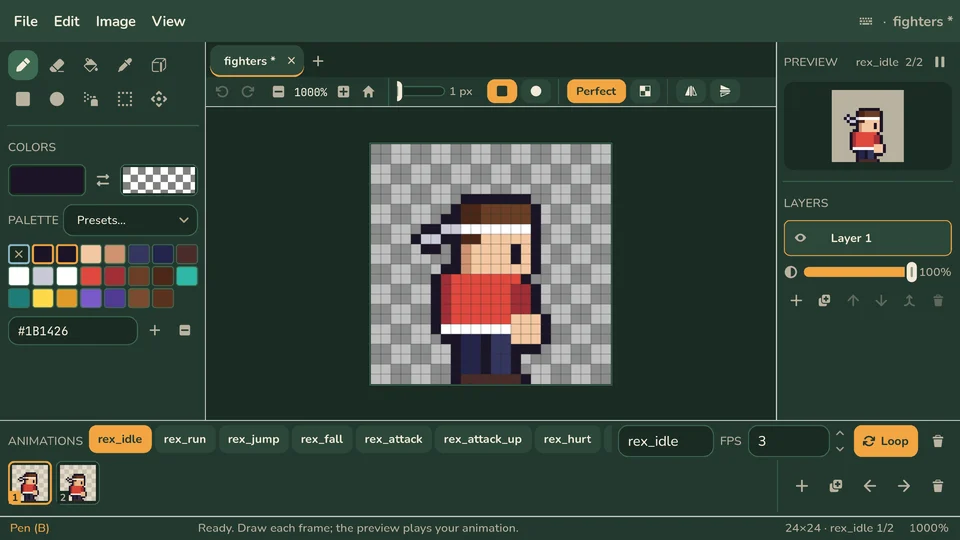
- Brushes up to 32 pixels, square or round. Set the brush size with a slider or type it in. The outline under the cursor shows the brush's real shape.
- Colors on the left. The two mouse colors and the palette now sit under the tools in the Sprites app, with the preview and layers on the right.
- White background option. View → Background shows a white, black or any other color behind transparent pixels instead of the checkerboard. It only changes the view, never your image.
- A tidier Sprites toolbar. Undo, redo, zoom and Fit now sit under the file tabs, in one compact row with the brush and tool options.
- The colour picker fits. In the Sprites app the colour picker is a compact square with hue and hex, so it no longer runs off the bottom of the computer screen.
- Drop sounds into your scene. Drag a sound or a song from the Files list onto the scene to get an AudioStreamPlayer2D right there, or onto the scene tree for a plain AudioStreamPlayer. Sounds and songs you never exported get their .wav made for you.
- Pick a background colour. Project settings has a Background colour that shows wherever your scenes draw nothing: in the editor, in the game, on TVs and in the downloaded Godot project.
- Trackpad pan and zoom in the scene view. In the Project app, swipe with two fingers to move around the scene, and pinch (or hold Cmd and swipe) to zoom.
- Play Game helps you pick a main scene. If no starting scene is set (or it was deleted), Play Game asks which scene to start with, sets it and plays. With no scenes yet, it tells you how to make one.
- No player limit. Project settings no longer has Max players. Anyone can join a game, and the game decides who plays; everyone else watches.
v0.0.59
Real days and drones
Rooms go through Steam by default, the house follows the host's real clock, the campaign follows real days, and Store orders arrive by drone.
New
- Browser players, when you want them. Turn on Allow browser players in the Network app and friends without Steam can join from a web browser with the same code. It's off unless you switch it on.
- Clearer room sharing. In the Network app, pick who can join first. The room code only appears when you choose "Anyone with the code". Under it, Steam and Browser players each say in plain words whether people can get in right now, and why not if they can't. The room button on the computer's status bar shows the same at a glance.
- The house runs on real time. In the campaign and the tutorials the sun, sky and the computer's clock follow the host's real clock, so evenings in the house are evenings for real. Creative rooms start at the host's time too and can still change it. The weather and seasons keep changing by themselves every 15 minutes.
- A clock you can set. The clock on the computer's status bar shows the host's time. In Settings → Clock you can show your own time instead, and switch between 24-hour and AM/PM.
- The campaign follows real days. Royalties arrive once a day when you come back (time away is summed up in one mail, never a flood), sales come in while you're in the house, new job offers arrive as you play, and jobs take real minutes of work.
- A tidier Settings app on the computer. Everything fits on one page: wallpaper, the pointer (shape, colour and now size), interface sounds and music volume, and new code editor options: text size, minimap, wrapping long lines, showing tabs and spaces, and closing brackets for you. Reset all puts it back the way it was. System info moved to the Monitor app.
- Deliveries come by drone. Store orders are packed, then a little drone flies in, lowers the box on a cable at the drop zone out front and flies off. Everyone in the house sees it, anyone can open the box, and packages still on the way are saved with the house.
- A Store that fits the screen. The rooms are a list on the left with how many items each has, the grid shows three times as many items at once with headings for each kind (jump to one with the chips), and you can sort by price or name and show only things that work, hang on a wall or fit your budget. Double-click an item (or press Enter) to put it straight in your cart, and use the arrow keys to move around. The details show each item's size, colours and what it does, and you can drag the preview to turn it.
- Cart & orders on their own page. See everything in your cart with pictures, change quantities, check what you'll have left, how much room your house has and how many packages can come at once. Next to it, every package on its way shows where it is: packing, drone on the way (with a countdown), waiting at the drop zone, or being unpacked by someone.
Improved
- The Spacetime app fits on one page. Time, sky, weather and brightness are all on screen at once, no scrolling. New: pick the season, pick the weather (it holds until you let it change by itself again), switch lightning on or off, and go back to the host's real clock with one click.
- Lamps look lit. A lamp that is on now glows: the bulb, diffuser or light strip lights up with the lamp and goes dark when you switch it off. Ceiling lights, floor and table lamps, desk lamps and wall lights were rebalanced to light a room the way you would expect (desk lamps now shine down onto the desk), and light no longer gets trapped inside a lampshade.
- Calmer fireplaces. Fires flicker gently instead of dipping to black.
- The Files app does more. Open any file straight in the app that makes it (double-click or Enter): scenes and scripts in Project, sprites in Sprites, sounds in Sounds, songs in the Sequencer. Rename files in place (F2) and delete them (Del, twice), and add pictures and sounds from your computer with Add files. Every file is listed now, including the picture a sprite saves and the .wav files a sound or song saves, each pointing back at the file it's made from.
- One set of file rules. The Files app and the Project app's Files panel now name, colour and handle files the same way. Renaming or deleting a sprite, sound or song brings the files made from it along, a renamed main scene stays the main scene, and you're told which scenes and scripts still use the old name. Sounds and songs open in their own apps from the Project app too, instead of as text.
Fixed
- Join Game from Steam works. Clicking Join Game on a friend's Steam profile, or accepting their invite, now takes you to their room. It used to do nothing.
- Moving pictures no longer breaks them. Renaming or moving an image or sound in the Project app's Files panel used to save it as text and ruin it.
- OGG and MP3 sounds reach other players. They were sent like text files and arrived broken.
- Open files follow a rename. Renaming a file in the Files app moves its open tab in the Project app, Sprites, Sounds or the Sequencer, so the next save doesn't bring the old name back. Deleting a file closes its tab.
- Short sounds show their length. The Files app showed 0:00 for sounds under a second; it now shows hundredths of a second.
v0.0.52
A busier desktop
The computer gets a status bar, a record-shelf Music app and a Monitor that shows what's running. Sprites open in tabs, and music and sounds stop crackling.
New
- A status bar on the computer. The bar under the desktop shows what's going on: what's playing, a game running on the TV, your tasks, money in the campaign, who's in the house and at which computer, your mic, the room code and the time in the house. Click any of them for more, or let people in straight from the bar. Open apps are numbered (Ctrl+1 to 9 jumps to one, or Alt+1 to 9 in the browser) and show a dot while they have unsaved changes.
- A new Music app. Music is now a record shelf: Café, Golden Hour and Cabin Radio, each with its own cover, plus Our songs, where every song you make in the Sequencer shows up ready to play. Pick In order, Shuffle or This one, and see what plays next. Play on sends the music to a stereo so everyone in the house hears it. Music keeps playing when you close the app and fades out when you leave the computer.
- See what's running. The Info app is now called Monitor and has a Processes page, like
top: the database, game server and AI model running on your computer (with their process ids, ports, uptime and memory), and everything running in the game, from the room tunnel and voice chat to each open app.
Improved
- A new Info app. The computer's Info app is now a live dashboard: frame rate, frame time, memory and draw calls with little charts, cards for your computer, the game and the session (including whether the game servers are running), and the latest problems. Performance has live charts over the last one or five minutes, Loading shows how long each step of the game start and every room load took (time spent in menus isn't counted), and Log shows everything the game printed, with filters and search. Copy report and Save make a text report for bug reports.
- Scene, Script and Game, like Godot. The Project app has Scene, Script and Game tabs at the top. Each one shows only its own open files, and Game shows the running game.
- Start a scene by picking its root. With no scene open you get an empty new_scene tab. The Scene panel offers 2D Scene, User Interface or Character as the root, or any other node.
- Open several sprites at once. Each file in the Sprites app gets its own tab over the canvas, like a paint program. The + tab starts a new sprite or opens another one, each tab keeps its own undo history and zoom, and closing a tab with unsaved changes asks whether to save it.
- Sprite names in the title bar. The Sprites app shows the sprite's name in the window's title bar too, with a * until you save (Ctrl+S or File → Save). Click the name, or use File → Rename…, to rename it. The toolbar has more room for drawing tools now that the name box and Save button are gone.
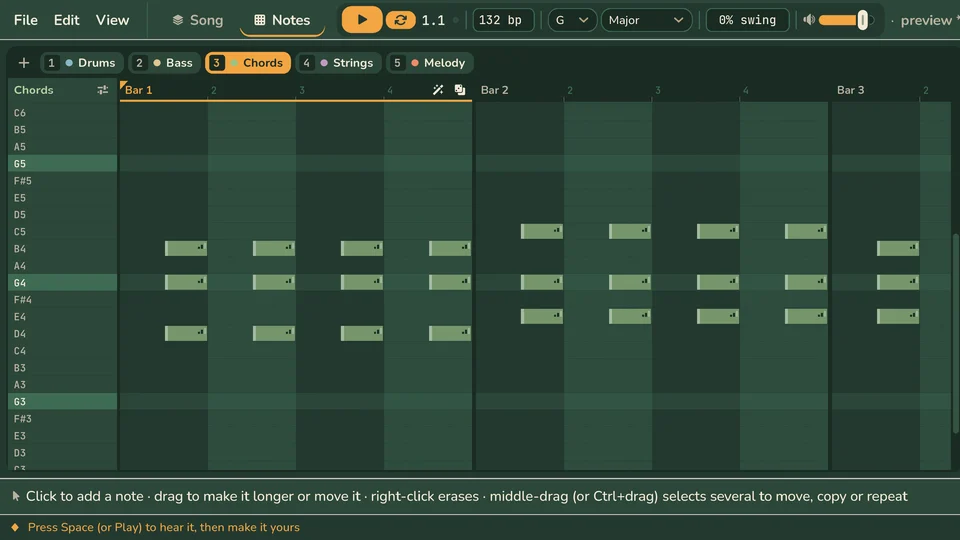
- A tidier Sequencer. The song's name sits in the window's title bar with a * while it has unsaved changes (click it to rename). Save with Ctrl+S or File → Save; the * disappears once it's saved. File, Edit and View menus, the Song and Notes tabs and all the playback controls fit in one slim bar: play, loop, tempo, key, swing and volume sit together, and tempo and swing change with a drag, the mouse wheel or by typing. Instruments show their number key (press 1 to 8 to jump to one), the picked instrument's sound, octave, patterns and Surprise sit together on one row, the bar numbers stay in view while you scroll the notes, and instruments line up with their bars in the song view. Leaving a song you haven't saved asks whether to save it first, and File → Save as saves a copy under a new name.
- Select many notes at once. In the Sequencer, middle-drag (or Alt+drag, or Ctrl+drag on a laptop) a box around notes, or Ctrl+click them one by one. Drag any of them to move the lot, change their volume or roll together, or copy (Ctrl+C) and paste (Ctrl+V) them where the pointer is. Ctrl+D repeats a phrase right after itself, so a riff becomes a whole part in a few presses. Notes with their own volume show a small level mark.
- A tidier note editor. The note grid now holds every octave an instrument can play: scroll up and down through them, and hold Shift (or swipe sideways) to move along the bars. Each instrument keeps its place, even when you change the key or scale, undo, or switch to another instrument and back. The instrument's name and a settings button (change its sound, with previews) stay above its keys, the instruments are numbered tabs (or a dropdown when there are too many), and Patterns and Surprise sit on the bar you're working on. Add bars with the + after the last one, right-click a bar number for more, and middle-click a bar to choose where Patterns and Surprise go without changing any notes or the playback. The song view lost its toolbar row: add instruments with the + next to Instruments and bars with the + after the last bar.
- A tidier Sounds app. The sound's name sits in the window's title bar with a * while it has unsaved changes (click it to rename), and File, Edit and View menus replace the buttons along the bottom. Save (Ctrl+S) always writes the sound you can edit later, the .wav your game plays and a Sequencer instrument, all at once. The presets are icons in the menu bar (hover one for its name), and Play, Live and Mutate sit at the top of the sound picture, so nothing jumps around while a sound plays and the picture gets more room.
- A start page for the Sounds app. Opening it shows the presets to start from and your saved sounds, each with a picture of its waveform and a play button. A new sound starts out named after its preset, so picking Laser and saving makes laser.
- Sequencer notes open where the notes are. Opening an instrument's notes scrolls straight to its tune instead of the top of the grid.
Fixed
- Friends' shopping counts. In a campaign, Store orders and furniture sales made by friends now come out of (and go back into) the shared money for everyone, and an AI helper a player shares now shows up for the whole room.
- You choose what runs on your computer. A game on the TV no longer starts playing for you by itself: you get a "Watch Alex's game?" card first (Y / N while walking), because watching runs their game on your computer. Saying yes trusts that player until you leave the room. Checking scripts never freezes the game any more, other players can no longer make your computer check theirs, and only a player who shares a local AI model answers other players' AI requests.
- Your projects stay yours. Only players you let into your room can open or change your projects, and only the one the room is on. Other players can no longer make your computer load files you didn't choose. The server your game hosts now only listens on your own computer; to let friends join by address, start the game with
--lan. - No more crackle in music and sound effects. Held notes in the Sequencer no longer tick, drums and rolls end cleanly, Sounds-app effects start without a click, and many sounds playing at once no longer distort. The Sequencer now plays every note on its exact sample, in the game and in the browser, and sounds exactly like the song you export, at the same level instead of being squashed when lots of notes play at once. Edits are heard straight away while the song plays; very long songs show a short "Compiling song" card before they start. An exported song with Loop on is exactly its bars long, so it loops in a game without a pause. In the browser, notes no longer play twice or click, and fades and loops sound the same as in the desktop game.
- Saved sounds are always up to date in your game. Save in the Sounds app now writes the sound your game plays too, so there's no separate WAV step to forget. Lowering the Takes count removes the extra takes, and a game that's already running plays the new version.
- Dialogs opened from a right-click menu take clicks. After right-clicking a file and choosing Rename (or any menu item that opens a window), the OK and Cancel buttons sometimes did nothing. Right-click menus now open once the button is let go, everywhere on the computer.
- Connecting a button's signal works. In the Project app's Signals tab, buttons no longer look as if they're already connected (it was the editor's own click sound), so the connect button shows and opens your scene's script. Connecting before the scene has a script now gives it one, named after the scene.
- No more pops while editing music. Dragging a note up or down the Sequencer's keyboard no longer crackles: the notes you slide past let go as you move on instead of piling up, quick edits while a song plays blend in smoothly, and replaying a note that's still fading no longer cuts it off with a click. Held notes you hear while editing (and the strum after changing the key) no longer crackle either, and while a song plays, changing an instrument's sound, octave, the key or the scale (or adding an instrument) just changes the music as it plays, with no preview sounds on top. Stopped, you still hear a quick preview.
- The Apply button fits in the Profile app. The character customizer now fills the window: the character picker, Face and Clothes each sit in their own card, the rows spread out to use the space, and Apply no longer runs into the bottom of the screen. The page never scrolls or jumps around: options a character doesn't have are greyed out instead of disappearing, and messages show over the preview.
- No more stray pixels at the edge of a sprite. Clicking beside the image used to paint the nearest edge pixel. Now only clicks on the image paint, and a stroke that runs off the edge stops there.
- Dither works with mirror and spray. Mirrored strokes keep the same checkerboard on both sides, and Spray follows Dither too.
- Menus work like a real menu bar. In the Sprites and Sequencer apps, with a menu open, moving the mouse onto another menu's title switches to it, and clicking another title opens that menu instead of just closing the first.
- The computer's cursor stays on top. On the computer, the cursor no longer slips behind open menus, dropdown lists and tooltips.
- Menus close when you click away. On the computer, clicking anywhere outside an open menu or dropdown list closes it, including empty space and window title bars.
- Smooth zoom into the computer. Sitting down at a computer no longer flashes the room for a moment between the zoom and the desktop.
- One cursor at a time. The computer's cursor and the normal one no longer show together (after switching windows, or with a menu open over the desktop), and no cursor pops up while the camera flies in or out.
v0.0.44
Faster everywhere
The world runs about three times faster, the game starts sooner, and placing furniture is easier to get right.
Improved
- A much faster 3D world. The meadow around your house was drawing millions of invisible grass blades every frame. It no longer does, so the world runs about three times faster and looks exactly the same. The main menu now keeps up with your screen's refresh rate too.
- Smoother on Retina Macs, 4K screens and browsers. On sharp screens the 3D world now draws at about 1080p and is scaled up, while the interface stays crisp. Turn it off under Options → Graphics → "Limit 3D on sharp screens".
- A faster computer desktop. The house is no longer drawn behind the desktop while you use the computer, and the desktop itself does less work on very high-resolution screens.
- A lighter outdoor world. Trees and bushes no longer draw several overlapping copies of themselves, the snow layer only exists while there's snow, and screen glows from laptops, TVs and arcade machines no longer cast shadows.
- A smoother cursor on the computer. The in-game computer no longer runs at 60 frames per second, so on 120 Hz screens (like MacBook Pros) the cursor follows your mouse or trackpad smoothly instead of lagging and juddering. On Macs it also no longer stutters: the game stopped fighting macOS to keep the pointer inside the window.
- Faster start. The game reaches the main menu about three seconds sooner: the outdoor world loads in parallel, and the menu no longer loads it twice.
- House pictures fit their cards. Menu house pictures show the whole house, centred, instead of cutting off the roof. Empty campaign slots no longer show a house.
- A cursor you can see on light apps. The computer's cursor colours are now dark with a light outline, so the pointer shows on the Tasks, Mail and Bills paper as well as on the desktop. Old light colours reset to the new default.
- No middle mouse button? No problem. Option + click on a Mac (Alt + click elsewhere) does anything a middle-click does: sell or remove furniture, pan the scene editor, and orbit the camera in the house builder.
- Easier furniture placing. The placing card shows what you're placing, on which surface, only the keys that work there, and in red why an item doesn't fit ("In the way: Desk", "Aim at a wall"). Wall items snap to a 10 cm grid and stay between the floor and ceiling, tilted items sit on the floor properly, and turning an item is smooth. Hold Alt to place off the grid, and right-click cancels.
- Safer build mode. Selling takes two middle-clicks, so you can't sell something by accident. Only the item you're aiming at shows its name and price, instead of price tags through every wall, and your own character no longer gets in the way of the crosshair.
- A cleaner highlight on things you can use. Objects you can interact with get a crisp outline that follows their shape, amber when you aim at them and a soft cream line when you are close, instead of the old green glow with lines across the object and gaps at the corners.
- A proper delivery zone. The spot out front where Store orders arrive is now a painted pad with a striped border and "DELIVERY ZONE" written on the ground, instead of a floating label. Grass no longer grows through it.
Fixed
- Wall items face the room on every wall. TVs, shelves, lights and other wall items no longer go on the east and west walls backwards. Items you already hung backwards turn round on their own.
- No using things through the walls. From outside the house you can no longer sit on, open or switch on things inside it (and the other way round). Doors and windows still work from both sides.
v0.0.38
A Project app that feels like Godot
More nodes, code completion, undo for everything and a scene view that works like Godot's. The starter games were rebuilt to learn from.
New
- More nodes for 2D games. The Project app's Add Node list is now searchable and grouped for making games: new Marker2D, Parallax2D (scrolling backgrounds), CPUParticles2D (sparks and explosions), RayCast2D, VisibleOnScreenNotifier2D, CheckBox, HSlider and GridContainer. Each one says what it's for.
- Code completion. The script editor suggests keywords, your node's properties and functions,
$Node paths from your scene, and what comes after Input. or Net..
Improved
- A tighter, fuller Project app. More of the scene tree, files and inspector fit on screen. The inspector covers far more: collision shapes, collision layers, sprite sheets, camera limits, text size and colour, anchors for menus, and your script's
@export variables. Numbers can be dragged to change them. - See your physics. Collision shapes, cameras, ray casts and markers now show on the canvas, and you can drag the corners of a box or a shape to resize it. Nodes that won't work yet (a body with no shape, a sprite with no picture) show a warning that says why.
- Undo everything in the scene editor. Ctrl+Z / Ctrl+Y now undo adding, deleting, renaming, moving and changing nodes, not just dragging.
- A scene view that feels like Godot. Snap, zoom and the home view now sit in a compact toolbar over the scene itself, and each open scene or script tab carries its own close button (middle-click a tab to close it too).
- Templates start from Node2D. Every template's scenes now have a Node2D root, the same as a new Godot 2D scene. Projects you already made keep theirs.
- A sharper scene view. Text and edges in the Project app's scene view are drawn at your screen's full resolution, and stay sharp when you zoom in.
- The grid sits under your scene. The editor grid is drawn behind your nodes instead of over them, and the Snap button shows or hides it the moment you click it.
- Right-click menus and shortcuts. Right-click a node or a file for Rename, Duplicate, Delete, Attach script, Set as main scene and more. Del, Ctrl+D, F2 and the arrow keys (Shift to move further) work in the scene. Nodes can finally be renamed.
- Signals made simpler. One line per signal, with a plain-English tooltip for each.
- Game templates made to learn from. Every starting game in the gallery was rebuilt so it's easy to read: each thing in the game (a paddle, a ship, a bullet, a car) is its own scene with its own short script, and the game's main script only handles the rules. They now have animated pixel-art sprites and sound effects, which you can open and change in the Sprites and Sounds apps. Every template works for its full player count and for anyone watching on a TV, and you can play each one on your own: computer players fill empty seats, or the game is co-op or a time trial. Smash Bros is now Blast Zone and Shmup is now Star Shooter, and Craps keeps the bets that are easiest to learn.
- Scene changes use real Godot paths. Switch scenes with
Net.change_scene("res://scenes/Game.tscn"), exactly as in the Godot project you download. The campaign now teaches it this way too. Games that still use the old "Game.json" names keep working. - Play downloaded games with friends on one computer. A game you download from the Files app can be played by up to four people on one screen: friends press A on their gamepad (or Enter on the keyboard's arrow-key side) to join, and player 1 presses A or Space to start. Player 1 plays on WASD, a second keyboard player on the arrow keys, and everyone else on their own gamepad. Games use ready-made controls (move, action, aim) that show up in Godot's Input Map.
- A simpler character creator. Pick from ten characters, choose a haircut where a character comes in several, add a beard, mustache or goatee, glasses, and colours, all on one page. New characters start clean-shaven. Lips match the skin tone unless you pick a colour, and Random always rolls a natural-looking face. Hairstyles are no longer swapped between characters (some of those combinations never looked right), so a saved character wearing another character's hair shows its own again.
Fixed
- Rename and Delete keep hold of the file. In the Project app, a teammate's changes arriving while the Rename or Delete dialog was open made the dialog lose track of which file it was for.
- No more seeing through the ceiling. Jumping indoors no longer lifts the first-person camera through the ceiling. Your jump is a little lower under a ceiling and unchanged outside.
- Buttons in the Project app's side panels light up. Hovering + Node, + Scene, + Script and the new-scene choices now highlights them, so you can tell what you're about to click.
- Settings opens once. Pressing Settings again in the Project app no longer stacks a second settings window.
- Particles move in the scene view. CPUParticles2D (sparks, smoke, dust) keep emitting while you edit, like in Godot, instead of freezing on their first frame. They only ran once you pressed Play.
- A readable code overview. The thin overview of your script beside the scroll bar in the Project app no longer shows as solid white bars.
v0.0.31
A new campaign
Each campaign chapter is now a game you build from an empty project, together, with tasks that tick themselves when your game works. No more hunger, thirst or bills.
New
- A new campaign, starting with Pong. Each chapter of the campaign is a game you build yourself from an empty project. Chapter 1 walks you through Pong in three parts: a main menu with working Start and Exit buttons, a court with two paddles and a bouncing ball, and a scoreboard with a winner screen. Ship it to earn royalties. Campaign saves from earlier versions can't be continued, so start a new one.
- No more hunger, thirst, trash or bills in the campaign. Your time goes into making games. Freelance jobs and royalties still pay, and you spend your money in the Store. The day and money overlay is gone too, so it no longer covers the computer.
- Chapter 2: Breakout. Draw your own paddle, ball and bricks in the Sprites app, build the wall with a loop, then smash it. Three lives, a score, and a win or game-over screen. It opens once you ship Pong.
- Chapter 3: Star Defender. A space shooter with a laser and an explosion you make yourself in the Sounds app. Enemies rain down at random, your bullets fly, and every hit goes boom.
- Start the tutorials over. A Start over button on the Tutorials page (click twice to confirm) clears your finished lessons and lesson saves so you can play them again from the first one.
- Everyone builds together. In the campaign anyone in the room can finish any task, and the Tasks app shows who did each one.
- Tasks that check your work. Campaign tasks tick themselves when your game actually works: when clicking Start opens the court, when the ball bounces off a paddle, when the score goes up. There's no "Mark done" any more. Stuck? Every task has a Show hint, often with code to copy.
- One house for the whole campaign. Moving on to the next chapter keeps your house, furniture, money and bills.
- Everyone's progress on the task board. In tutorials the task board shows every task with a tick for each player, so you can see who's stuck and help. Tutorial homes always have one on the wall.
Improved
- Tutorials check your work. Every tutorial step now completes by itself when you actually do it: draw and save a sprite, write a function and run it, connect a signal, play your song. No more "Mark done".
- A tidier Tutorials page. Search lessons, filter by Art, Audio, Code and more, and hide the ones you've finished. Each track shows how long it takes and what unlocks it, and after How to Play you can take the tracks in any order.
- Tasks app. The step you're on is highlighted, each step says how to do it, and in a group you can see who has done each one.
Fixed
- The Tasks app opens on your current task. In campaign chapters and tutorials it used to scroll to the bottom of the list, past the task you were on. It now shows your next task near the top, and only moves when that task changes, so it no longer jumps while you read.
v0.0.23
Studios
In creative, a house is your studio and holds as many projects as you like. Start from any template, move into a furnished house, and take your game home as a Godot project.
New
- Creative studios. In Creative, a house is now your studio and can hold as many projects as you like. Every project in a studio shares its house, furniture and money, and switching projects on the computer keeps you in the same room. Your old projects each became their own studio.
- Pick a game to start from. Starting a project shows every template with a screenshot of the game, what kind of game it is, how many players it supports and a one-line description, next to a blank project.
- Furnished houses for creative studios. Four move-in-ready homes: the Cozy Cabin for two, the Living Room Studio for six, the Home Office for eight and the Loft Studio for ten. Each has a desk and laptop for every player, a fireplace or reading corner, lamps and plants, and the bigger ones add a kitchen, ping-pong and arcade cabinets.
- Room to shop in big houses. Bigger houses hold more furniture before the Store says the room is full: 40 items in a 2×2, up to 160 in a 5×5.
- Take your game home. The Files app shows your project the way Godot will see it: project.godot, scenes, scripts, sprites, sounds and songs. Look inside any file (scenes as a node list or .tscn text, sprites with their animations playing, sounds and songs with a waveform to play), save single files to your computer, or download the whole project as a .zip that opens and runs in Godot 4.7.
- "Sunday morning" starter song. A gentle new Sequencer template: music-box bells over warm chords, a soft bass and brushed drums. Its Lullaby, Warm chord, Heartbeat and Brushes parts are in Patterns too.
Improved
- Downloaded projects keep everything. Scripts on any node, collision shapes, sprite pictures and animations, tilemaps and sounds now all come along, in the same folders as in the game. Sounds and songs you saved but never exported get turned into .wav files, and scripts that use ProjectAssets or ProjectAudio keep working. The Export button moved from the Project app to the Files app.
- Jump from a node to its script. In the Files app's scene outline, a node's script and the scene it instances are links: click the arrow (or double-click the row) to show that file. A script that's missing shows in red.
Fixed
- Downloaded AI models are found. A model downloaded from the LLM app is now saved where the game's local AI server looks for it, so it no longer has to be downloaded again or placed by hand.
- No rain indoors in flat-roofed houses. Rain no longer shows inside houses with a flat roof, such as the Loft Studio.
v0.0.17
Room codes
Share a short code instead of an address and password, and decide who comes in. Watching and joining games on the TV gets clearer.
New
- Room codes. Open your room from the Network app and you get a short code like K7F-Q2M. Anyone with it can ask to join, with no port forwarding: players connect through Steam's own network, so nobody sees anyone's address.
- You decide who comes in. When someone asks to join, a card pops up wherever you are: let them in or turn them away with a click, or Y / N while you walk around. Steam friends join straight away.
- Invite links. Copy an invite link from the Network app. It opens a page where your friend can open the game on Steam, or play in their browser when you allow browser players.
- A new Network app. See your room code, who can join, who's waiting, everyone in the room (platform, how they joined, how long they've been there), your connection and traffic, and a feed of who came and went. Hosts can remove a player.
Improved
- Safer rooms. Closed rooms really are closed, only the host can change who gets in, and a removed player can't rejoin for a while. Room passwords are gone: the host approves each guest instead.
- Simpler joining. Joining is now one screen: type the code, or pick a Steam friend who's hosting. "Join by address" is still there for LAN games.
- TV setup. Clicking a TV lists your computers by name, with how far away each is and who's using or playing on it. Clicking a connected TV shows what it's connected to and a Disconnect button, so a stray click no longer unplugs it. Esc closes the list.
- Watching on the TV. A live TV shows who's playing, and its sound fades as you walk away from it. It also keeps up when the player edits the game mid-session.
- Joining at the computer. Click the computer of someone who's playing and you see "Joining…" right away. If they don't answer you're told, and your character stays put while you play.
- "Join" instead of "Play Game". When a friend is already playing your project, the IDE's Play Game button reads "Join <name>" and adds you to their game.
Fixed
- Lost tutorial progress. Finished lessons could disappear from the Tutorials page, especially with more than one copy of the game open or with Steam Cloud. Settings are now saved safely, Steam Cloud merges instead of overwriting, and lessons you finished before this fix are restored automatically.
- Games with a custom main scene now start correctly for players who join at the host's computer.
- Opening the IDE while a friend is already playing no longer starts a second copy of the game, which could end theirs.
- "Play again" and scene changes now happen once for everyone, instead of reloading the level several times on each screen.
- Joining from in front of a TV no longer leaves the TV copy running alongside your game, which doubled every move.
- Play in browser works first time. Opening the game from the site no longer shows a "Cross-Origin Isolation" error that only a hard refresh cleared.
- The main menu comes back whole. Returning to the main menu during a session could leave the logo missing and the buttons without keyboard focus.
v0.0.10
First playable
The first release: your own home studio, a little house on a green meadow where you and your friends make games together.
Play together
- Host or join. Host a game from your own computer, or join a friend's. Open your room to Steam friends, or share an address and password from the Network app.
- See each other. Walk around the house together, talk with voice chat (open mic or push to talk) and express yourself with the emote wheel (hold Q).
- Make your character. Pick a body, outfit, hair, hat, glasses and colours, and change them any time from the Profile app.
- Five camera views. First person, front, over the shoulder, isometric and top-down (keys 1 to 5).
Make games
- A real game editor. Sit at a computer to build 2D scenes, write GDScript and play your game together, live, while you edit it.
- Export to Godot. Every project exports as a standalone Godot 4 project you can keep working on outside the game.
- Edit side by side. Several people can work in the same project at once without overwriting each other.
- Starter templates. Begin from Pong, Craps, a shmup, a twin-stick shooter, a racer and more.
Creation tools
- Sprites. A pixel editor with layers, animation frames and tilemaps.
- Sounds. Design sound effects on a visual synth rack, with presets, random takes and variations.
- Sequencer. Write music with synths, bass and drums, and use your own sounds as instruments.
Three ways to play
- Tutorial. Short lessons that teach the basics: playing, sprites, audio, GDScript and scenes.
- Campaign. Live in a house of your own: keep yourself fed, pay the bills, take jobs and ship games for royalties.
- Creative. Free development on your own projects, with a to-do list to keep your team on track.
Your house
- Pick a house. Choose from ready-made houses or build your own, from the walls to the roof.
- Furnish it. Buy furniture in the Store and place it anywhere; deliveries arrive at your drop zone.
- Weather and time. Day and night, rain, snow and storms over the meadow around your house.
Settings
- Options for everything. Display, graphics presets, audio and voice, rebindable controls for keyboard and gamepad, camera feel and 10 languages.